 PeckBoard
HomeKit
HomeKit lets PeckBoard pair with HomeKit accessories on your network and control them directly — lights, plugs, switches, thermostats, locks, blinds, garage doors, fans, and sensors. A sidebar page shows each paired device live with controls that match what it is (a power switch, a brightness slider, a mode dropdown, a read-only temperature), and agents get tools to list, read, and set the same things.
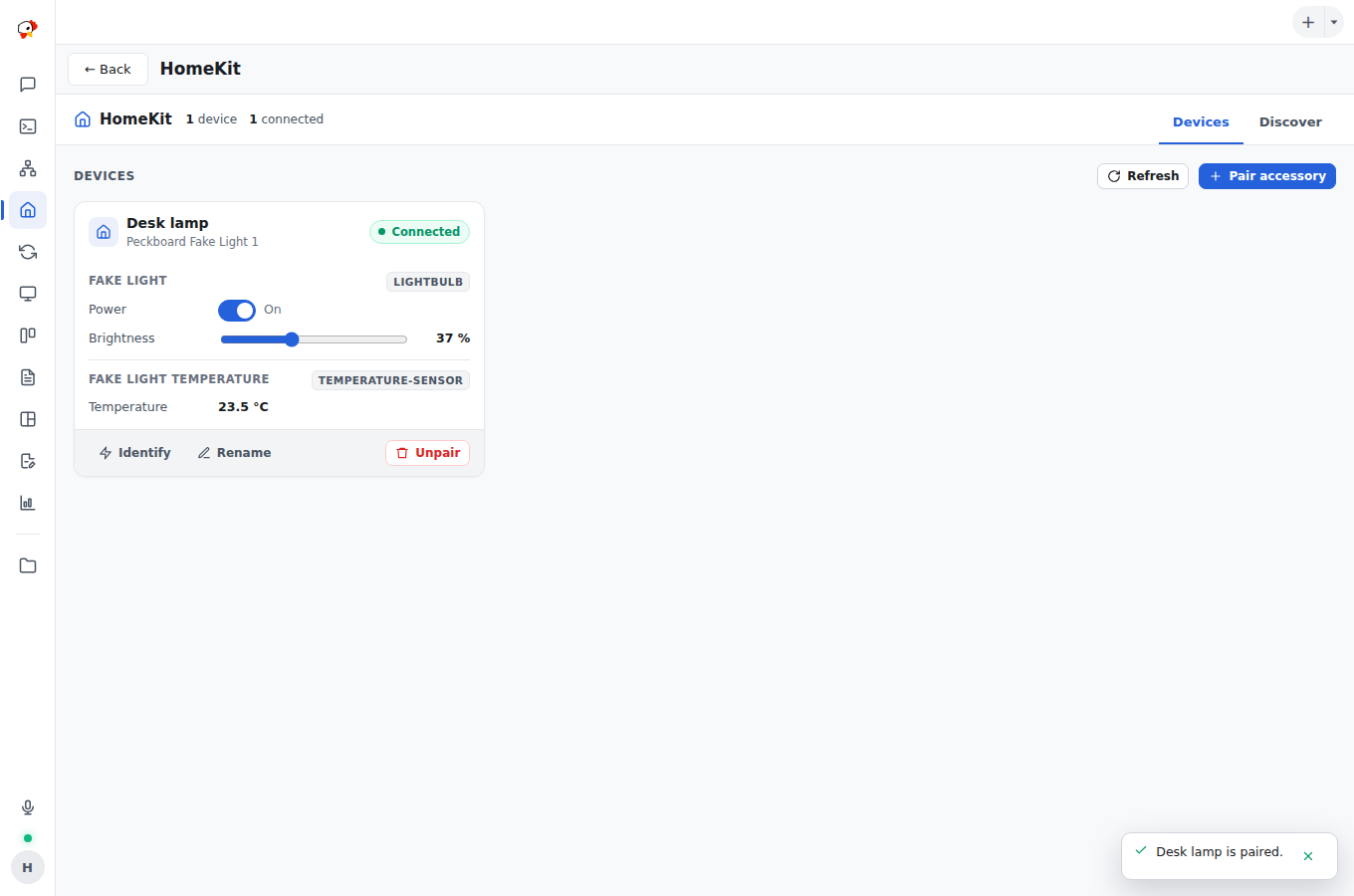
PeckBoard acts as a HomeKit controller, speaking the HomeKit Accessory Protocol (HAP) to the accessory itself — no Apple device, no Home hub, no Homebridge. HAP needs mDNS, long-lived encrypted TCP sessions, and push events, which a WASM plugin cannot do, so the plugin talks to homekit-bridge: a small Node.js daemon on 127.0.0.1:7782, not a registry plugin.
Before You Pair: Apple Home
A HomeKit accessory has one owner. If it is in Apple Home today, PeckBoard cannot pair with it until you remove it from the Home app (or factory-reset it). After that it is controlled by PeckBoard and no longer shows up in the Home app or Siri. Unpair in PeckBoard removes the pairing on the accessory, so you can add it back to Apple Home.
The Discover tab marks an accessory that still has an owner as Owned by another controller and blocks pairing until it is free.
Only IP accessories work — Wi-Fi or Ethernet devices. Bluetooth-only and Thread accessories are not supported.
Setup
Setup is automatic. When the page or a tool first needs the bridge, the plugin installs homekit-bridge as a systemd user service with no root (App Manager has the same homekit-bridge entry):
- the latest release bundle, sha256-checked, into
~/.local/lib/homekit-bridge - Node.js: the system
nodewhen it is 20 or newer; otherwise a private official Node 22 build next to the bundle (distro Node often lags — Ubuntu 24.04 ships 18) - a random bearer token in
~/.config/homekit-bridge/token - pairings — the accessory keys — in
~/.local/share/homekit-bridge/pairings.json, mode 600. Back this file up: losing it means factory-resetting every paired accessory. Removing the bridge keeps it.
The PeckBoard host must be on the same network as the accessories so mDNS can see them. For an accessory on another subnet, Add by address takes its IP, HAP port, and device id.
Pairing
Open Discover, pick the accessory, and enter the 8-digit setup code from its label or QR sticker (123-45-678 or 12345678). Many accessories lock pairing for a while after a few wrong codes; power-cycle them to retry.
Agent Tools
| Tool | What it does |
|---|---|
homekit_list |
Paired devices with their current state |
homekit_get |
One device in full: every service and characteristic, with ranges and allowed values |
homekit_set |
Sets a value by device name and characteristic (brightness, on, target-temperature, mode…) |
homekit_discover |
Accessories seen on the network, and whether each is free to pair |
homekit_pair |
Pairs an accessory with its setup code |
homekit_unpair |
Removes the pairing so the accessory can go back to Apple Home |
homekit_identify |
Makes the accessory blink or beep |
homekit_set checks the value against the characteristic’s range, step, and allowed values before sending it, accepts labels such as heat or locked for enum values, and asks for a service when a device has more than one match.
Settings: bridge_url (default http://127.0.0.1:7782) and bridge_token (default: read from ~/.config/homekit-bridge/token). A bridge at a custom address is never auto-installed.
Running the Bridge on Another Machine
The bridge has to be on the same network as the devices. When PeckBoard runs elsewhere (a server, a VPS), install homekit-bridge on an always-on machine at home — App Manager can do it on any SSH host — and point bridge_url / bridge_token at it. Keep the bridge off the open internet: bind it to a private address such as its Tailscale IP (--bind 100.x.y.z:7782), or put it behind a TLS proxy.
Philips Hue
Hue lights are controlled through your Hue Bridge’s local API (homekit-bridge 0.2.0 or newer). Unlike HomeKit accessories, Hue lights stay in Apple Home and the Hue app — nothing is unpaired.
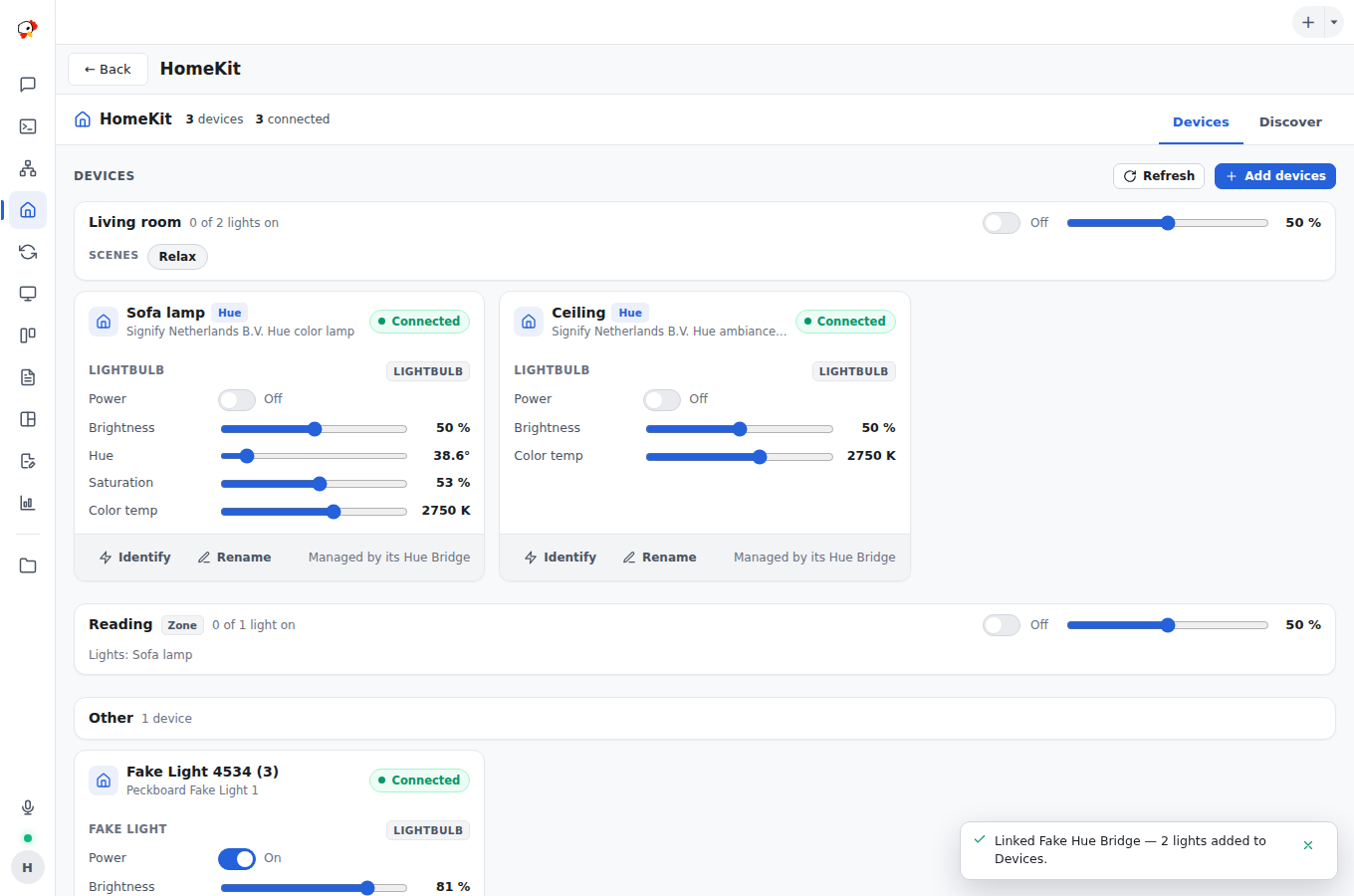
Open Discover: the Hue Bridge section lists the bridges on your network (or Link it by address for one it can’t see — the IP from the Hue app’s Settings → My Hue system). Click Link, then press the round button on the bridge within 30 seconds. Its lights appear under Devices, grouped by Hue room and zone, each room with a power switch, a brightness slider, and its scenes.
The connection is HTTPS, checked against Signify’s Hue Bridge root certificates (older bridges with a self-signed certificate are pinned when linked), and live state streams from the bridge. The key lives in ~/.local/share/homekit-bridge/hue.json, mode 600. Hue Bluetooth-only bulbs without a bridge are not supported.
| Tool | What it does |
|---|---|
homekit_hue_bridges |
Hue Bridges found on the network and whether each is linked |
homekit_hue_link |
Links a bridge — asks you to press its button, then call again |
homekit_rooms |
Hue rooms and zones with their on/off and brightness |
homekit_room_set |
Turns a room on or off or sets its brightness |
homekit_scenes |
Scenes, optionally for one room |
homekit_scene_recall |
Recalls a scene by name |
homekit_set and homekit_get work on Hue lights too, by name.