 PeckBoard
Print Farm
Print Farm runs a fleet of 3D printers from PeckBoard and slices models with the OrcaSlicer CLI. A sidebar page shows every printer live — state, progress, layer, time left, temperatures, and a webcam snapshot — with pause, resume, and cancel; a Slice tab uploads STL / 3MF / STEP models, picks OrcaSlicer printer, filament, and process profiles, slices, previews the result in 3D (model view plus a layer-by-layer G-code view), and sends it to a printer. Agents get tools to do the same, except that a print never starts without a human saying so.
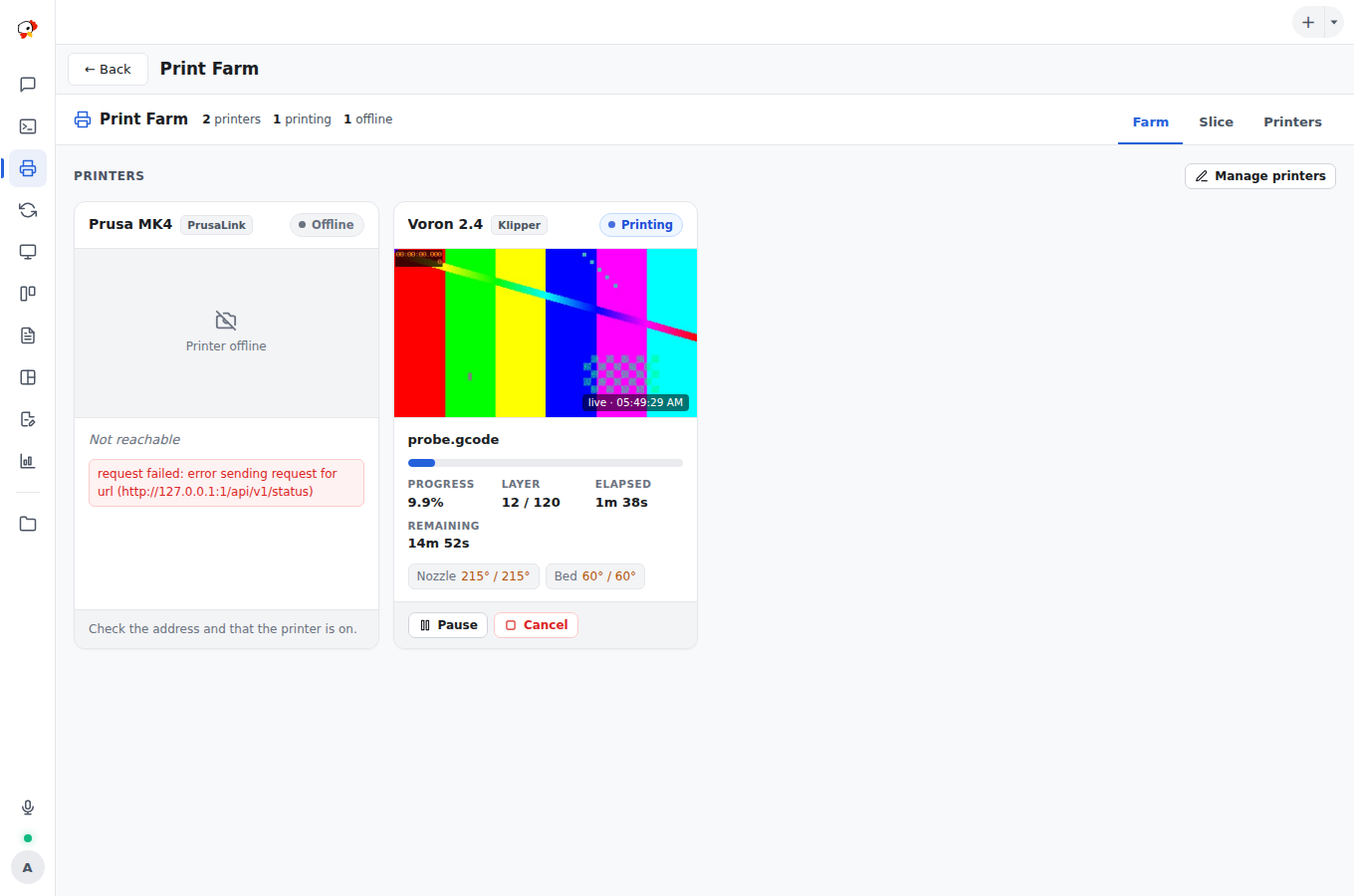
Supported printers: Klipper (Moonraker), OctoPrint, Prusa (PrusaLink), and Bambu Lab in LAN mode through the print-bridge helper. Bambu speaks MQTT and FTPS over TLS, which a WASM plugin cannot reach, so print-bridge — a small native daemon on 127.0.0.1:7781, not a registry plugin — translates them to plain HTTP. Newer Bambu firmware only allows third-party LAN control with LAN-only mode and Developer Mode enabled on the printer.
Setup is automatic. With nothing to fill in, Print Farm:
- installs OrcaSlicer itself if none is found: it extracts the AppImage into
~/.local/share/orca-slicerwithout root, and fetches libraries the host lacks (for examplelibGLU). On a host with no display it wraps the slicer inxvfb-runwhen that is installed. - installs or upgrades print-bridge as a systemd user service once a Bambu printer exists, and reads its token from
~/.config/print-bridge/token. - picks the printer’s own OrcaSlicer machine preset, and that preset’s default process and filament.
- corrects a mistyped Bambu serial from the printer’s certificate.
The plugin reads Orca’s bundled vendor profiles and your own presets and resolves their inherits chains within the preset’s own vendor. It slices a Bambu Studio project 3MF by keeping its geometry and applying the chosen profiles, and reports estimated time and filament from the sliced output.
The Bambu camera stays connected while the page is open and shows the latest frame. On weak printer Wi-Fi a frame can take a minute to arrive. The connection drops after a minute without viewers, because the printer allows only one camera client. Click a printer to open its control panel. It shows every control that printer’s connection supports and hides the rest:
- Job: pause, resume, stop, and print speed (Bambu speed levels, or a percentage on Klipper and OctoPrint).
- Temperatures: nozzle, bed, and chamber targets, with PLA / PETG / ABS presets.
- Motion: home, jog X/Y/Z, and motors off. Locked while printing.
- Extruder: extrude, retract, and filament load / unload. Extruding needs a nozzle at 170 °C or more.
- Fans, light, AMS: fan sliders, the chamber light, and AMS trays with the active one marked.
- Files on the printer: list, print, and delete.
- Console: send a single G-code line.
- Camera: the live view, and Capture still, which saves a picture to a gallery you can download from.
- Health: firmware, Wi-Fi signal, and printer errors (Bambu HMS codes, with a link to Bambu’s wiki).
When you send a sliced file to a Bambu printer with an AMS, Print Farm reads which filaments the file uses and picks the AMS tray of the same type, closest colour first. It uses the external spool when that matches instead. The send panel has a spool picker per filament to change it, and warns when no loaded spool matches.
Bambu printers refuse every remote command — start, pause, temperatures, the light — unless LAN Only Mode and then Developer Mode are turned on in the printer’s settings. Status, the camera, and uploads work without them. When the printer refuses, Print Farm says so and names the setting. With LAN Only Mode on, Bambu Handy and cloud printing stop working.
| Tool | What it does |
|---|---|
printer_list |
Lists configured printers with credentials redacted |
printer_status |
Live status of one printer or all: state, progress, layer, times, temperatures |
printer_detail |
Full status: speed, fans, light, Wi-Fi, firmware, AMS trays, errors |
printer_capabilities |
Which controls a printer supports |
printer_errors |
The printer’s current errors with descriptions |
printer_set_temperature |
Sets a nozzle or bed target temperature |
printer_set_fan |
Sets a fan speed |
printer_set_light |
Turns the chamber light on or off |
printer_set_speed |
Sets the print speed level or percentage |
printer_move |
Homes, jogs an axis, or turns the motors off — asks you first |
printer_extrude |
Extrudes, retracts, loads, or unloads filament — asks you first |
printer_gcode |
Sends one G-code line — asks you first |
printer_files |
Lists the files stored on a printer |
printer_file_delete |
Deletes a file from a printer — asks you first |
profile_list |
OrcaSlicer printer / filament / process profiles, filterable by vendor and name |
slice_model |
Slices a project file or uploaded file id into G-code (or .gcode.3mf for Bambu); returns a job |
slice_status |
Polls a slice job: log, output file, estimated time and filament |
file_list |
Lists models and sliced files in Print Farm’s storage |
file_delete |
Deletes a stored file — asks you first |
print_upload |
Uploads a sliced file to a printer without starting it |
print_start |
Queues a print, naming the spools it will use, and starts only on your “Start print” |
print_list |
Lists queued, running, and finished prints |
print_control |
Pauses or cancels a print (resume is page-only — it moves hardware) |
print_snapshot |
Grabs a live webcam frame, saves it, and shows the agent the picture |
camera_capture |
Captures a still into the gallery and shows the agent the picture |
capture_list |
Lists kept captures, newest first, optionally for one printer |
capture_view |
Shows the agent a kept capture (yours from the page too), an image file, or a printer’s newest |
profile_get |
One preset: its own values, the resolved values after inherits, and its file |
profile_save |
Creates or updates a User preset (inherits a system preset plus overrides) |
profile_delete |
Deletes a User preset |
farm_settings_get |
The farm-wide slicing and monitoring defaults |
farm_settings_set |
Changes farm-wide defaults |
printer_settings_set |
Sets a printer’s installed plate, nozzle, and default presets |
Camera tools return the image itself, so a vision-capable model can look at the print (spaghetti, warping, an empty bed) rather than a base64 string.
Plate Type, Defaults, and Profiles
Every slice tells OrcaSlicer which build plate is installed (curr_bed_type), so the filament preset’s bed temperature for that plate applies — without it Orca assumes Cool Plate, which gives PLA a 35 °C bed. The plate and every other slicing default resolve in this order: the slice itself, then the printer’s settings, then the farm settings, then the preset.
- Settings tab (farm-wide): plate type (default Textured PEI), default material and quality, brim (off / auto / fixed width), auto-arrange and auto-orient, an optional bed temperature override for every filament, confirm-before-start, and monitoring — camera snapshot interval, Bambu HMS codes to ignore, and auto-pause on a failure.
- Printers → Slicing (per printer): the installed plate, nozzle size, and default printer / process / filament presets picked from searchable lists, with the values currently in effect.
- Profiles tab: browse printer, filament, and process presets by vendor, including your User presets. Duplicate a system preset into a User preset and edit it with typed fields — nozzle temperatures, bed temperature per plate (first and other layers), cooling, flow, max volumetric speed, layer height, walls, infill, brim, supports, speeds — or as raw JSON. User presets are written to OrcaSlicer’s own user folder (
~/.config/OrcaSlicer/user/default/), so the OrcaSlicer app sees them too.
slice_model takes bed_type, brim_width, bed_temp, and an overrides map, and slice_status reports the effective plate and the bed and nozzle temperatures read back from the produced G-code. The slice panel shows the same and warns when the bed is below 45 °C on a PEI, engineering, or high-temperature plate.
PrusaLink has no API for heater control, so temperature changes on Prusa printers are reported as unsupported. A print start that times out keeps its confirmation, so retrying with the same token works and never starts the print twice.
If the agent cannot ask you (no live chat), the print waits on the page with a Start print button.
Hooks, permissions, settings, and storage
Hooks: mcp.tool.invoke, http.request.before, http.request.authed. Permissions: http_request, process_exec_any, data_store, ask_user, provide_mcp_tools, user_authority, contribute_sidebar.
process_exec_any runs curl (binary uploads, multipart forms, self-signed printer TLS), orca-slicer, and file housekeeping. While a curl request runs, the printer’s API key or password is visible on its command line to other processes of the same user.
Settings: bridge_url (default http://127.0.0.1:7781), bridge_token, orca_path (default orca-slicer), orca_profiles_dir (auto-detected), orca_headless (auto wraps the slicer in xvfb-run -a when there is no display), and storage_dir (default ~/.local/share/peckboard-print-farm). Models, G-code, and snapshots are stored on disk there; printer records and job metadata live in the plugin data store.